Author: Francisc

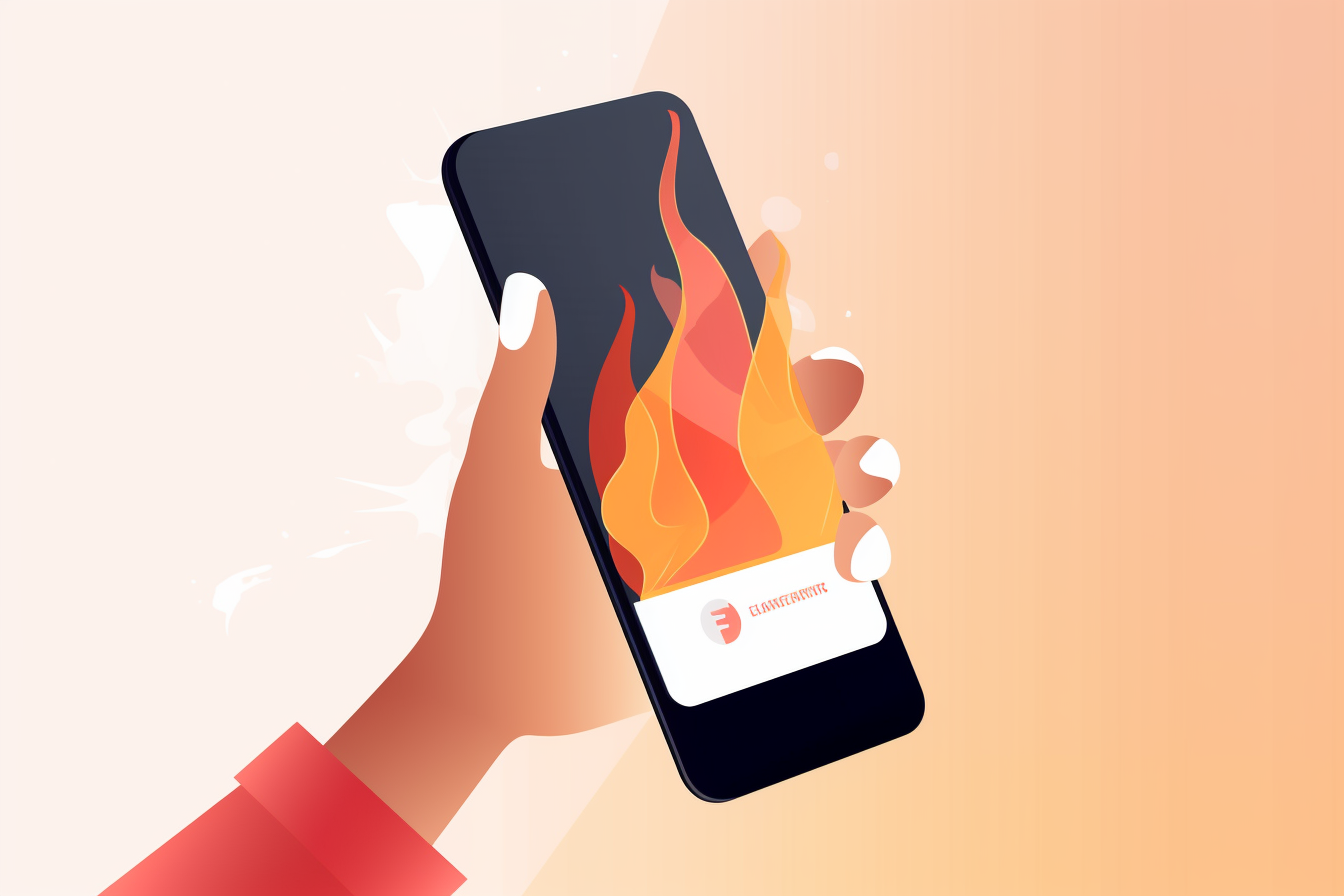
  • Is your iPhone showing “Important battery message”?

    Is your iPhone showing “Important battery message”?

    If you recently bought a used iPhone, you made a wise decision! We want you to know that not only your budget benefits in this situation, but also nature, which you indirectly chose to protect. Bringing used electronics back into the market goes a long way towards reducing pollution without compromising on quality, so you’ve done another good deed!

    But we don’t want to tell you about the gratitude we bring you in this material, but about the notification you may have received on your phone and which, more than likely, made you think. More precisely, we are talking about “Important battery message”.

    What does Important battery message mean?

    If you’re holding a refurbished iPhone XR, XS, XS Max, 12, 13, 14 or any other model that was released after them and you’ve updated to iOS 15, it’s likely that the smartphone display the message Important battery message appeared.

    No need to worry as your phone’s ability to function perfectly will not be affected in any way. On the contrary, if you receive this message, it means that the smartphone’s battery has recently been replaced with a new one, so that you can enjoy more autonomy.

    A phone’s battery falls under the Consumables category, so it is among the first, if not the first, to lose its capacity. This happens because each individual user has his own habits of charging the phone, many of which are far from the recommendations of specialists (do not leave the phone on charge overnight, do not charge it more than 80%, do not -you let the battery drop below 20%).

    That is why all smartphone manufacturers, i.e. Samsung, Huawei or others, do not offer a warranty of more than one year for phone batteries.

    When necessary, the batteries of the phones are replaced with new ones, precisely so that the future owner of the device can enjoy a good autonomy, just as in the situation in which he would choose to buy you a new phone, from the store.

    Why does the Important battery message appear on the screen?

    The short answer to this question is because Apple wants to condition you to exchange your phone components with them, the alternative that costs more.

    I mentioned above about the update to iOS 15, the newest Apple operating system, which comes bundled with this type of notifications. If you are not willing to pay the exorbitant costs that Apple authorized services impose and you choose another service for battery or display replacement, you are likely to receive this notification on your phone screen.

    The problem, which was cataloged by many as an abuse on the part of Apple, is an older one, and worldwide it has triggered a movement called Right to repair (The right to repair). Both the US government and the European Parliament are now trying to regulate how Apple phones are used. Fans of the brand should have the right to repair iPhones wherever they want, that is, in the services they prefer, without being conditioned by messages like “Important battery message” to end up with the phones at Apple, where the costs of the services and spare parts are, we all know, much higher.

    Is the Important battery message affecting my phone?

    Not. Apple has made it clear that the “Important battery message” will NOT affect the performance of your iPhone. The notification is just to let you know that the newly installed battery on the device has not been attached to an Apple service, but this will have nothing to do with the life of the battery or its capabilities.

    How long does the Important battery message stay on the screen?

    The notification will remain on the screen of your phone for the first four days of using the device, then it will “move” to the settings area, next to the battery, where you can also see the battery capacity. It will stay there for 15 days, after which it will disappear completely.

  • How do you find your lost or stolen phone?

    How do you find your lost or stolen phone?

    The scary scenario of a morning when everything has gone wrong can culminate in the disarming sensation of feeling empty in the pocket where you thought your mobile phone was, as soon as you got off the bus or subway.

    The same thing can happen at a concert or at the pool, and the damage is not limited to the value of the gadget, but can be amplified by the value of the data you had stored in the device. You can have no guarantee that you will never lose your phone or that it will never be stolen, but you have a lot of solutions at your disposal to limit the consequences of such an event.

    For this, we have prepared some extremely useful information for you in this material, which we invite you to read in the lines below. Here’s what you’ll learn from this article:

    If you were wondering how to find a lost or stolen phone without GPS, it’s good to know that the main means at your disposal in this situation is to locate the smartphone by IMEI.

    Under the acronym International Mobile Equipment Identity we find the unique code of each device, which consists of 15 digits, is unique and can be included as vital information in a complaint submitted to the police when your phone is lost or stolen. In case you don’t know your phone’s IMEI, all you have to do is type the code *#06#, which will generate it on its screen.

    Write it down ahead of time and keep it safe in case you lose or get your phone stolen and you want to solve the problem first and foremost through legal means. If your complaint will be accompanied by the documents proving that you are the owner of the smartphone, the chances of recovering the phone increase.

    Before contacting the law enforcement, however, use a friend’s phone to contact the telephone operator you were subscribed to or from whom you purchased a prepaid card. The GSM operator will be able to immediately block your device, also based on the IMEI code.

    Also, you can register the IMEI of the stolen or lost phone here, if you want to report the incident, and the authorities can take action when the phone returns, in one form or another, to the market.

    How do you locate a phone with GPS?

    Although many users do not keep the GPS function constantly active when using the phone, it can prove to be a lifesaver in case of theft. The basic condition is that the gadget is switched on and in the coverage area of a GSM cell.

    The signal emitted by the phone can be quickly picked up by satellites, regardless of whether the device is connected to the data network or a Wi-Fi router. These phone features, combined with a specific app or dedicated program, can prove crucial in your quest to recover your stolen phone.

    What phone trackers are available for iOS?

    If you use an Apple phone, you have more than one app to find it:

    Find my iPhone: Useful for both phones and tablets, the free app is available in the AppStore and requires registration with your iCloud data. What you need to know about this application is that if you use an iPhone 11, 11 Pro, 11 Pro Max, iPhone 12, 12 Pro, 12 Pro Max or a phone from the iPhone 13 range and you have updated to iOS 15, Find My it will locate your iPhone even if it’s locked, out of battery, or factory reset.

    FoneHome: based on the same working principle used by Gadget Track, FoneHome helps you to permanently monitor the position of your missing phone.

    Gadget Track: This paid app is designed as a trap for thieves, who will receive a notification on their phone. After opening the message, your phone will discreetly send photos and GPS coordinates to the other devices you have registered in iTunes.

    What phone trackers are available for Android?

    Google Photos: if you take care to activate the Backup & Sync function on your Samsung, Huawei or any other Android smartphone in advance, the photos automatically uploaded to your Google Photos account will help you see where your gadget has been and who takes photos with him

    Google Timeline: Even if it requires a little detective skills, this app is as useful as it gets. Based on the history of marked places in Google Maps, where your phone has been recently, you can determine from a laptop an area where you could find it.

    Android Device Manager: available for free, the application helps you complicate the mission of a possible villain, either by triggering an alarm at maximum volume, or by deleting all data from the device’s memory.

    What other programs or applications can you use to find a lost or stolen phone?

    If you have a smartphone but don’t use Android or iOS, you have an app to find your phone. You can install Find My Phone for your phone

  • Hotspot on your phone: Everything you need to know about this feature on your iPhone or Android

    Hotspot on your phone: Everything you need to know about this feature on your iPhone or Android

    Our phones have a feature that not many enjoy. And this happens because in many areas of Romania the Internet speed on Wi-Fi is excellent, compared to that of other countries. Just open your laptop and connect to the network with the best signal to juggle freely between sites, apps or social networks.

    Conversely, when we talk about crowded locations, such as cafes, terraces or airports or other places from which you would like or need to be online, the bandwidth will be divided according to how many users are connected to the network. In other words, the Internet speed on Wi-Fi, but also its stability, will directly depend on the total number of network users.

    Hotspot from phone to laptop

    Additionally, a public Wi-Fi network, such as one in a park or fast food restaurant, can put you at risk. Connected to the same Wi-Fi that other people have access to, your laptop and all the data it contains could be easy prey for hackers. They can send viruses to your device or even steal files that you store on your laptop. So, be very careful which public internet network you choose to connect to!

    A hotspot on your phone would save you from all these worries. We recommend that you also set a password for access to the hotspot on your phone, which you should not make public. Activated only with a password, the hotspot will be there only for you, so the internet speed you will enjoy will be perfect to be able to do your work online quickly, but also safely, with the stability it can offer you mobile phone service provider..

    Technically speaking, the hotspot feature will turn your phone into a wireless router. It will take the Internet from the data package, which it will transmit via Wi-Fi to other devices.

    So, it is enough that the phone remains connected to the Internet, via data, and has enough battery so that the laptop, tablet or other phone you want to use has access to the Internet of the same quality as the one with you were used to your smartphone.

    There is no limit to the number of devices that can simultaneously connect to the hotspot you’ve created from your phone, although the same rule as explained a few lines above applies. More precisely, the more devices you allow to connect to your hotspot, the more the internet speed will decrease.

    It’s also good to know that the phone will work perfectly normally as long as the hotspot is active. You will still be able to receive or initiate calls, you will be able to stay online and from your smartphone and you will be able to take pictures or use other functions of it.

    Hotspot on phone

    Just remember that the phone you’re using to hotspot will have to be relatively close to the device you want to stay connected to the internet at all times. The distance at which the connection will be lost also greatly depends on the obstacles that may be around, such as a wall, a piece of furniture or even your or other people’s body, which can deflect or even interrupt the Wi-Fi signal -Be.

    In theory, the range of a cell phone Wi-Fi hotspot starts at 20 meters, but can even reach a hundred meters under ideal conditions. Signal coverage also depends a lot on your phone’s antenna.

    It is also necessary to know that the hotspot is not dependent on any operating system. Whether you’re using an iPhone or an Android phone, the feature is at your disposal whenever you want. Here’s how you can activate it.

    How to hotspot from phone to laptop (iPhone and Android)?

    It’s very easy to activate the hotspot function from your phone to your laptop, because most smartphones have it included in the features menu itself. From the same place where you activate mobile data, airplane mode or flashlight, you can also set the hotspot function.

    How to hotspot on iPhone?

     from the home screen, open Settings and choose Personal Hotspot;
     a slider named Allow Others to Join will open, which you must activate;
     the name and password of the hotspot network to which you can connect with any device with Wi-Fi access will appear on the screen.

    How do you hotspot on an android phone?

     open the Settings bar, from the home screen;
     choose Mobile Hotspot and Tethering by long pressing the symbol;
     the name and password of the hotspot network will be displayed on the phone screen, which you can start using from another device. Don't forget to activate the hotspot by pressing the button that will change the status of the function from OFF to ON.

    To use a hotspot network from your phone to your laptop, after you have activated the function on your smartphone, open your laptop and click on the icon on the bottom right, which looks like a globe if you are not connected to any network or which has the symbol Wi-Fi if you are already connected to the Internet on a network that you want to change to your hotspot.

    From the list of available networks, choose the one with the name you identified earlier on your phone when you activated the hotspot function. Next to the password, fill in the one displayed on the smartphone screen.

    Hotspot while roaming – what you need to know

    If you want to download your Covid Green Certificate or access any other data online while you’re out of the country, it’s good to know that you can hotspot from your phone to your laptop even when you’re roaming.

    However, it’s important to know what to expect. The mobile phone company to which you are subscribed or from which you use a prepaid card will not charge you extra because you also use mobile data on your laptop or tablet. It will be the same data consumption as if you were using the internet just to stay online from your phone.

    Hotspot on your phone

    Instead, you would do well not to forget that, in roaming, all services are more expensive than when you are in the country (although European rules have imposed other conditions, but we will talk about this topic in detail, probably in an article future). You won’t pay because you use the same network for two or more devices, but the price of one gigabyte of network will be higher abroad than in the country, if you use the roaming service.

    It is best to check the roaming prices charged by the mobile phone company on its official website before leaving the country on holiday or on business. It may be more advantageous for you to buy a prepaid internet card from the place where you are going to arrive, from which you can then make a hotspot from your phone to your laptop.


    What impact does hotspot have on phone battery?

    When using the hotspot, you may notice that your phone’s battery drains quickly. It’s normal for this to happen, since the feature needs a lot of power to transmit signal from your phone to your laptop, tablet or other device that you need internet for.

    If you notice that your phone has overheated, it’s possible that its battery will run out of power even sooner than you might expect. Try moving the smartphone you’re using as a hotspot to a cooler place than the one you kept it in until that moment, possibly near an air conditioner.

    If you notice that the battery percentage is approaching zero, apply a trick to be able to continue using the Internet through the hotspot. Do not stop the connection, but plug the phone into the laptop, via a cable. Even if the laptop is not charging, it will manage to donate some of the energy to your smartphone until you manage to finish your work online.

    It is also advisable to connect the phone to an external battery, from which the device can draw enough power to allow you to finish whatever activity you had to do on the laptop.

    Enable hotspot

    Regardless of the telephone network you chose to subscribe to or from which you bought a prepaid card, activating the hotspot will be done in the same way. In other words, it doesn’t matter which of them you are a customer of, because activating a hotspot at Digi, Vodafone, Orange or Telekom depends on the function of the phone itself, not on the network you use to communicate.

    So, go back to the paragraph where we explain how to hotspot from phone to laptop on iPhone and Android and follow the steps there.

    We hope we have answered all the questions you might have about hotspot on your phone. If you have others, leave us a comment below, and we will take care of completing this material with the information you requested as soon as possible.

  • iPhone, Samsung and Huawei IMEI check – Complete guide

    iPhone, Samsung and Huawei IMEI check – Complete guide

    As advanced as the technology is, there are probably many aspects that you don’t know about your phone or there are some that you don’t necessarily take into account on a daily basis. For some things, less pleasant, such as the theft of a phone, it is good to be prepared. For this reason, it would be good to have at hand the means by which you can identify where the stolen phone is, in order to be able to block it later. This can be done by identifying the phone’s IMEI.

    What is phone IMEI?

    The phone’s IMEI is like a kind of international CNP of your phone, according to which the device can be identified, in mobile networks or in a physical way. Every phone released on the market has this IMEI, which is unique and whose name comes from International Mobile Equipment Identity.

    The IMEI is the type of information that is good to have at hand from the moment you get a new mobile phone. Even mobile phone operators suggest you to know this unique identification number.

    At the same time, this IMEI series allows phones to make emergency calls, regardless of whether a SIM card is inserted in the phone or not. Important to mention here is the fact that dual-SIM phones have two such codes.

    It is also good to know that this IMEI series of your device should not be confused with the IMSI series, which represents the International Identity number of the mobile subscriber and which is stored and printed on the SIM card. In the purchase form of a mobile phone, the two codes are filled out separately.

    The main purpose of the IMEI is to assign a unique registration number to your mobile phone. It is, if you like, similar, to a certain extent, to the registration number of the car.

    If you haven’t found out about this series yet, you don’t have to worry. In the following, we present the methods by which you can check the IMEI for the iPhone, as well as for the Samsung and Huawei models.

    What is the phone’s IMEI made of?

    The IMEI of mobile phones is usually made up of 15 digits. The first three show the phone model code – TAC (Type Approval Code). The next two digits represent the country code in which the device was assembled, for example 03 is the code for China. The other six digits that follow represent the phone’s serial number (SNR – Serial Number or SN). The last digit in the IMEI does not have much significance.

    How do you find the IMEI of your phone?

    Immediately after you take possession of your phone, you will already take possession of this IMEI series. The first and most convenient place where you can identify the IMEI of your smartphone, before you even open it, is, in the case of new phones, right on the box in which you received the phone or on the purchase invoice. If you come into possession of its original box, you will most likely find this IMEI of the phone on the back, which you can communicate further to your mobile operator. Some devices have this series written on them, either under the battery, or on the back of the case, or on the SIM card holder, if we are referring to phones with a unibody type case.


    The simplest and easiest way to find the IMEI

    The IMEI series can be found by entering the following combination on your phone’s keyboard: *#06#. This is the code used to find out your IMEI serial number. It is the simplest and most accessible method by which you can find this code. If your phone is dual-SIM, two IMEI series will appear on the window that will open. Below this series or series, you will see, within the same message, a new code called SN or SNR that designates the phone’s Serial Number.

    To remember these indications, you can take a screenshot with your phone so that you can have them at hand later to use them when you need them. Although it is one of the most popular methods to check the phone’s IME, an aspect that must be mentioned here is that this combination of characters sometimes gives errors.

    The only smartphone that offered the expected results was the Samsung Galaxy S6 Edge Plus, from 2016. On the Huawei P Smart 2019, the phone’s IMEI appeared on the screen only on the third attempt. It didn’t work on the LG V40 ThinQ either, just like on the iPhone models. For the latter, Apple’s instructions do not include the *#06# combination for checking the phone’s IMEI. For this reason, we will continue to show you the ways in which you can check the IMEI for your iPhone.

    How do you check the IMEI on an iPhone?

    If you own a device produced by Apple, we will show you how to identify the IMEI series, right from your phone. Although you think you don’t need this identification number, well, find out that you might need it when you least expect it.

    iPhones are phones that attract attention, especially for their attractive design and market value, which steals the eyes of the curious, but also of potential thieves, unfortunately. For this reason, the chance that your precious device ends up in someone else’s hands increases significantly. The IMEI series will help you identify the phone that was stolen or that you accidentally lost. In these situations, you must contact a representative of your mobile phone operator who, after receiving your phone’s IMEI, will be able to access your phone’s location.

    But, first of all, the simplest method by which you can identify this number is to go to the phone settings, to the General > About > IMEI section. Also, on the iPhone, you can still find the IMEI in the Finder or in iTunes through a search, if you no longer have the original box of the phone, or if you have decided to purchase a second-hand phone.

    If an iOS 6 or newer operating system is installed on your phone, then you will also have the option to copy this number to your phone, so you can later “paste text” where you need it. It is recommended that, for security reasons, you do not share this identification number with anyone, except your mobile operator or Apple support and technical assistance personnel.

    Another way to find out the IMEI for your iPhone is to access appleid.apple.com, from Safari, on your Mac, where you will log in with your Apple ID. Afterwards, you must scroll down until you reach the “Devices” section, where you will also see the IMEI of your device. If you have an iPhone with an operating system iOS 10.3 or the versions that appeared after it, you will be able to identify the IMEI series after you connect to your Apple account, after which you will access the Settings > Your name option.

    An option that proves simple to put into practice is to enter the phone and access the Preferences option, then enter the Apple ID, and then the iPhone.
    iPhone IMEI, written on the SIM holder

    Whether or not the IMEI appears on the screen depends on the model of your phone. There are several iPhone models that have written the IMEI on the SIM holder:

     iPhone 15
     iPhone 14
     iPhone 13
     iPhone 12
     iPhone 11
     iPhone XS
     iPhone XR
     iPhone X
     iPhone 8
     iPhone 8 Plus
     iPhone 7
     iPhone 7 Plus
     iPhone 6s
     iPhone 6s Plus

    Checking IMEI on Android

    And in the case of Android phones, the first and most convenient way to check the phone can also be done from the settings (from the device’s Settings menu). Depending on the phone version, you can check the IMEI following the following steps:

    ● Settings > About phone > Status > IMEI

    ● Settings > General > About device > Status > IMEI

    ● Settings > System > About phone > Status > IMEI

    ● Settings > About Device > Status > IMEI

    IMEI check for Huawei and Samsung models

    Huawei’s official website offers four methods by which smartphone users can find out the phone’s IMEI.

     Type the combination *#06# on your phone's keypad for the query.
     When the device is turned on, all you have to do is go to "Settings", then enter the "About" section and then access the current status for querying.
     Check the IMEI of the device on the label on the back of the phone, if I can remove its case.
     Check the serial number of the device on the product package, i.e. on the box it came in when you bought it.

    Checking the IMEI for the models in the Samsung portfolio can be done following the same steps as in the case of the models produced by Huawei. Moreover, Samsung officials offer as guidance for checking the phone’s IMEI and SNR the actual invoice that you receive as proof of the transaction concluded between you and the company.

    IMEI Blacklist check and second-hand phones

    Competition between companies in the mobile phone industry has intensified in recent years. The manufacturers we are already used to promise us more and more performing models, which surprise us in terms of quality and innovation. However, we all know that we often do not have the budget necessary to purchase a phone that has recently appeared on the market, which is why it is good to consider the possibility of buying a second-hand device, which comes with significantly better prices.

    You will come across offers of second-hand phones that will be hard to refuse, due to the fact that they are affordable, but in this chapter you have to pay attention to one more aspect. What you have to consider is whether or not the phone you decided to get is on the so-called “blacklist” of phones, nicknamed “blacklist”. The way you can see this is through an IMEI blacklist check.

    What does an IMEI blacklist mean?

    An IMEI blacklist or a blacklist is a database through which you can identify if a certain mobile device has been reported as lost, stolen or as originating from a fraud (eg: non-payment of the subscription or installments), based on the IMEI- the phone. Therefore, if you decide to buy a phone, especially a second-hand one, you will have to find out what the status of your phone is. For this, you can access imei.info, a platform based on one of the largest technical assistance centers in terms of information about IMEI and IMEI check.

    Your phone can still be entered on this blacklist, due to an additional reason. We are referring here to users who do not fulfill their duties that are stipulated in the contracts concluded between a mobile phone operator and the respective person.

    The black list also contains the IMEI numbers of the phones that belong to people who have not respected the terms and conditions imposed in the contracts for the purchase of a phone, such as repeated non-payment of invoices. Most companies in the telecom industry transmit so-called black lists from each other, with these IMEIs, so that, if the person in question decides to port to another mobile network, he will not be able to use the phone under the umbrella to any other local or even regional operator.

    4 examples of sites where you can check the IMEI for free

    The phone’s IMEI can also be checked for free on the following sites:

     imei.info
     imei24.com
     www.imeipro.info
     www.iphoneox.com

    Why is the IMEI of the phone important?

    We have seen that every phone is assigned an IMEI, i.e. a unique code, specific only to that device, which allows the buyer of a second-hand phone to check if the phone has been reported as coming from a fraud, or its country of origin, what is the model of the phone and other important details about the phone. The IMEI was created basically so that mobile phones can be easily identified at any moment of their life.
  • How to recover deleted photos from phone, on iOS and Android?

    How to recover deleted photos from phone, on iOS and Android?

    As generous as it may seem, the storage space of your smartphone can reach a maximum level in a relatively short time, which will not allow you to save new files to the phone. That could be the moment when, most likely, you would be tempted to delete the pictures you took or received recently.

    The situation gets complicated if you accidentally delete pictures you didn’t want to let go of. But don’t worry, even if you’ve deleted one or more photos that you hoped to keep as a memory, there are several ways to recover your photos, whether it’s an Apple phone or an Android smartphone.

    Here are the methods by which you can recover deleted photos from your phone, on iOS and Android. (if it is advantageous to you, you can directly reach the information that is helpful to you, with a simple click below on the topic that interests you)

    Deleted photos from a phone using the Android operating system (such as those from Samsung or Huawei) can be recovered more simply than ever. The first place you should look for them is your smartphone’s trash.

    Check in the Trash folder

    Go to Gallery and look for the Trash folder, which you will most likely find when you open the application menu (the three dots). Deleted photos from the phone remain for 30-40 days, depending on each model) in the trash can in the smartphone gallery, from where you can restore them.

    So, the steps you have to follow to recover deleted photos are:

     Enter the Gallery;
     Click on the three dots, which will open the hidden menu of the application;
     Find the trash in the Gallery. Depending on the phone model you are using, it could have several names. For example, smartphones using the OneUI operating system use the term Recycle Bin, while phones with MIUI have Trash Bin, and Realme UI smartphones have a section called Recently Deleted;
     Once the folder is opened, you will find in it all the pictures deleted from the phone, if no more than 40 days have passed since you gave them Delete.
     Click on the picture or pictures you want to recover and press Restore or Recover or any other option that might lead you to think of recovery.
     The photos thus restored will end up back in the folder on the phone where they were before you deleted them (for example, in the gallery, in the folder dedicated to photos in WhatsApp, Messenger and so on).

    If you didn’t find the deleted photos in the trash folder of your phone, you still have a chance to recover them.

    Check Google Photos

    Another place where pictures you’ve deleted from your phone might be “hiding” is in Google Photos. To try to recover them, you will need to go through the following steps:

     On your phone, go to Google Photos;
     Select Library;
     Choose Trash and find all the deleted photos from your phone in the folder. Files remain here for 60 days after they are actually deleted, after which they will be permanently deleted.

    How do you recover deleted photos from an Apple phone (iPhone)?

    If you use an iPhone and accidentally deleted one or more photos from your phone, you can recover them by following the steps below:

     Enter the Photos app;
     Click on the Albums section;
     Find the Recently Deleted album and open it;
     Here you will find all the deleted pictures from your iPhone gallery, which you can recover with the Recover command, which you can activate with one click.

    Once recovered, the previously deleted photos will return to the All Photos album, where you can access them whenever you want.

    If you can’t find your deleted photos in the Recently Deleted folder, you can most likely recover them from iCloud. To do this, you will need to:

     You sign in to iCloud.com from a computer;
     Select the Photos folder, which you will find under Library, on the left side of the menu;
     Access Recently Deleted;
     Select the pictures you want to recover;
     Click Recover on each one.

    Note, however, that the 30-day rule that photos deleted from your phone remain in the Recently Deleted folder also applies to Apple’s cloud.

    If you have an iPhone and use Google services as additional storage space, the recovery of deleted photos from the phone can be recovered as follows:

     Open Google Photos on your phone;
     Choose Library from the bottom of the screen;
     Click on Bin, from the top;
     Select the photos you want to recover and choose Restore.

    It’s good to know that this is the method to recover deleted photos from your phone only if you used the Google Photos app to store them, not if you deleted them directly from the device’s gallery.

    These are the easiest steps to recover deleted photos from your phone, regardless of whether you use an Android or iOS phone. If you know of others, leave a comment below with the method you applied so that your favorite frames return to your phone’s gallery.

    What can you do to avoid the risk of deleting important pictures for you?

    We assume, as we stated at the beginning of this material, that you end up deleting pictures from your phone due to lack of storage space. So we suggest you constantly backup your photos to your favorite cloud to make sure you don’t lose precious memories for yourself.

    It is also advisable to take advantage of the possibility to stop downloading the pictures received on WhatsApp in the phone gallery. Here’s how easy you can do it:

    And if your smartphone constantly informs you that it no longer has free storage space, since it is an older model, we suggest that you seriously consider upgrading it.

  • Proximity sensor on the phone: what is it and what is it for?

    Proximity sensor on the phone: what is it and what is it for?

    As the name suggests, a proximity sensor is a sensor capable of detecting the presence of objects or people nearby without the need for physical contact. Proximity sensors can be used in many fields, such as the automotive or construction industry, but in this material we will focus on telling you more about the proximity sensors mounted on mobile phones.

    The proximity sensor mounted on your phone emits a beam of infrared electromagnetic radiation, which will constantly seek to detect any changes or presences in the field it covers.

    Precisely because the proximity sensor does not need actual physical contact to be activated, this component of your phone has high reliability. In other words, the lifetime of the proximity sensor is very long.

    If you were wondering how it can help you, it’s good to know that the proximity sensor will detect the fact that you brought the phone closer to your face and eliminate accidental pressing of the device’s touchscreen. In other words, when you answer or initiate a call and bring the phone closer to your ear, the proximity sensor will come into action and will not allow you to press the Hold button, various keys on the screen or abruptly end the call.

    The proximity sensor will also take over, in certain situations, the task of recognizing the position in which the phone is located, but also that of “reading” gestures, if you have activated them for different functions.

    Last but not least, the proximity sensor will extend the life of your phone by simply protecting its battery. If we compare the screen size of the first mobile phones with the ones we use today, there is no doubt that smartphones consume much more energy. The proximity sensor will turn off the screen whenever you don’t need it, even though you’re using the device, for example when you’re talking on the phone.

    Generally, mobile phone manufacturers mount the proximity sensor on the top of the smartphones, on the right, near the selfie camera. So, because you activate it unintentionally, the proximity sensor will not allow you to swipe on the phone screen during a call. If you want to enter the smartphone menu, you will have to notice the position from which the proximity sensor is activated and avoid it by sliding an idea below it.

    If when you are talking on the phone your calls are suddenly cut off or you have trouble maintaining conversations due to the fact that you accidentally press your face on the screen, most likely a visit to a phone service could get rid of these inconvenience.

    Which phones have a proximity sensor?

    Most phones these days use an infrared-based proximity sensor, so it doesn’t matter if you’re a fan of Apple or Samsung or Huawei phones, because they all have a proximity sensor API. As a small detail that you might find interesting, Apple first fitted a proximity sensor in 2007, when it launched the first iPhone model. From then until today, all Apple phones have come bundled with this sensor, meant to help you.

    The even better news is that all proximity sensors manage to adjust automatically, except those fitted to the following models:

     Samsung Galaxy Note 2
     Samsung Galaxy Note 3
     Samsung Galaxy S3
     Samsung Galaxy S3 Mini
     Samsung Galaxy S4
     Samsung Galaxy S4 Mini

    So, you won’t need to do anything at all to enjoy the functions of a proximity sensor, which is an element that almost all phones come equipped with from the factory.

    How do you check if the proximity sensor is active on your phone?

    If you are not the first owner of the smartphone you are now holding in your hand, and if the people you use to talk to on the phone keep complaining that you press the keys during conversations, it is time to check whether the proximity sensor is working properly or not .

    To do this, it is enough to gently wipe the top area of the phone. If you use it, it’s good to carefully clean the phone case too, especially in the upper part, near the speaker, where the proximity sensor is located.

    On the net you will find a lot of other instructions that promise you that you will succeed in resetting or canceling the proximity sensor, but they are no longer valid for today’s smartphones, so you will be wasting your time.

    If you still have problems with the proximity sensor, we suggest you take the phone to a service or send the device for warranty, if it is still valid.

    How can you disable the proximity sensor?

    Unfortunately, or rather, fortunately for the health of your phone, you cannot disable the proximity sensor. However, if it’s not working properly and giving you problems, here’s how you can “recalibrate” it.

    Give your phone a hard reset. Press and hold the volume button and simultaneously the power button of the device until the manufacturer’s logo appears on the screen. Once turned on, you can check if the proximity sensor has recalibrated or if a trip to service is needed to solve the problem encountered.

    Don’t forget that the proximity sensor is there to help you and extend the life of your phone. When you hold the phone to your ear, the proximity sensor will dictate the device’s screen to turn off, which will save its battery power.

  • The Future of Phone Repair: Embracing New Technologies and Trends

    The Future of Phone Repair: Embracing New Technologies and Trends

    As smartphone technology continues to advance, the cell phone repair industry must adapt and evolve to stay relevant and meet the changing needs of consumers. The rise of foldable devices, 5G networks, and advanced diagnostic tools are just a few examples of innovations that are reshaping the phone repair landscape. In this article, we will explore these emerging trends and discuss their implications for the future of the phone repair industry.

    Foldable Devices: 

    Foldable smartphones represent a significant shift in design and functionality, and as these devices become more popular, repair professionals will need to develop new techniques and skills to address their unique challenges. This may include specialized training in handling flexible displays and hinges, as well as access to replacement parts and components specifically designed for foldable devices.

    5G Networks:

    The widespread adoption of 5G networks will bring faster download and upload speeds, lower latency, and improved connectivity. While this advancement in network technology may not directly impact the phone repair industry, it does emphasize the importance of staying up-to-date with the latest smartphone models and their compatibility with 5G networks. Repair technicians will need to understand how to diagnose and resolve potential connectivity issues related to 5G technology.

    Advanced Diagnostic Tools:

    As smartphones become more complex, repair professionals must rely on advanced diagnostic tools to identify and resolve issues efficiently. From high-resolution thermal imaging cameras to sophisticated software for analyzing device performance, these tools will help technicians diagnose problems more accurately and streamline the repair process.

    Modular Smartphone Designs:

    Some smartphone manufacturers are exploring modular designs that allow users to easily swap out components, such as cameras, batteries, or processors. If this concept gains traction, it could lead to a shift in the repair industry, with technicians focusing on replacing individual modules rather than performing more complex repairs.

    Sustainable Repair Practices:

    As environmental concerns become increasingly important, the phone repair industry may need to adapt by embracing more sustainable repair practices. This could include using eco-friendly replacement parts, offering battery replacement services to extend device lifespan, and promoting device recycling programs.

    Remote Support and Repair Services:

    Advancements in remote support and diagnostic tools are enabling repair professionals to assist customers without the need for in-person visits. By leveraging these technologies, repair shops can offer more convenient and efficient services, helping customers resolve minor issues remotely and reducing the need for time-consuming in-store visits.

    Specialized Repair Services:

    As smartphone technology becomes more diverse and specialized, repair professionals may need to focus on specific niches within the market. This could include offering repair services for specific brands, models, or types of devices, such as foldable smartphones or devices with advanced AR/VR capabilities.

    The future of phone repair will be shaped by emerging technologies and trends, requiring repair professionals to adapt and evolve to stay relevant in a rapidly changing industry. By embracing new techniques, tools, and specialized services, the phone repair industry can continue to meet the needs of consumers and ensure the longevity of their devices. As technology continues to advance, repair professionals must remain vigilant and proactive to maintain a competitive edge in an ever-evolving market.

  • How to Hide “Typing” and “Online” Statuses on WhatsApp?

    How to Hide “Typing” and “Online” Statuses on WhatsApp?

    If you have already disabled the Last seen and Read Receipts features on WhatsApp, you are probably the type of user who prefers discretion. But, as you already know, even if you unchecked the option by which the application shows your contacts when you were last online, when you return to the platform or write a message, WhatsApp will display in the conversation you open the message “typing ” or “online”.

    Thus, your interlocutors can expect to receive a response from you in the shortest possible time. In case you don’t want to be disturbed or simply don’t want others to know when you picked up your phone to check your messages, the simple method to hide “typing” or “online” on WhatsApp might help you , which I explained to you below.

    Here’s what you need to do if you don’t want to be seen online or typing in WhatsApp anymore:

     check received messages directly from the phone menu, without entering the application - swipe down on the screen or by pressing the down arrow, for each received message; thus, you can read without appearing online;
     close access to the net - disable Wi-Fi or mobile data or put the phone on airplane mode;
     enter WhatsApp and quietly read all received messages - be sure that those who sent them cannot see you online, because you have the net disabled;
     respond as you wish to received messages, at your own pace - your interlocutor will not see that you are writing (typing), also due to the fact that your internet is closed;
     tap Send - the message won't be sent until you turn Wi-Fi or mobile data back on or turn off airplane mode, so the person you sent the message to won't see you online or know you're typing.

    And that’s it! Now that you know how easy it is to hide “typing” or “online” statuses on WhatsApp, you will eliminate a source of stress that you were most likely facing until now.

  • Does the phone restart itself? Find out why this happens and how to fix it!

    Does the phone restart itself? Find out why this happens and how to fix it!

    Few situations are more frustrating than when your phone turns itself on and off. You’ve probably gone through the situation at least once when, in the middle of a conversation or any other activity you might do on your phone, the device froze and shut down suddenly or you had to restart it.

    If your smartphone also shuts down, even if it has a battery, and then restarts itself, the information you will find in the following lines may be the solution to the problem you are facing.

    Here’s what you can do if your phone restarts when you haven’t given it this command.

    1. Update the phone’s operating system

    Just as our laptops need to be up to date with the latest features and security patches to function properly, so too should our phones benefit from the latest operating system updates.

    The number of updates you receive on your phone depends a lot on its manufacturer. For example, the latest Samsung phone models receive security updates every month. And, we know, sometimes they can get annoying. While you’re downloading the latest version of the operating system, you can’t use your smartphone, and that might not suit you.

    But it is necessary to update, once the device has notified you that there is one available, in order not to risk not being able to use it anymore or for the phone to turn on and off, apparently for no reason.

    You can see if your phone is running on the latest version of the operating system available for its model if:

     go to Settings;
     choose Software update;
     click on Download and install;
     check if the phone is up to date or if you have the Update option available.

    What you want to find on the screen, to remove from the list of possible causes why the phone turns on and off by itself the reason that it is not up to date with updates, is the sentence Your software is up to date.

    1. Update applications

    Another reason why the phone shuts down, even if it has battery, could be that the installed applications do not have the latest update. If you chose to protect your smartphone’s battery and canceled the automatic download of the latest versions for the applications you use, you may have forgotten to check what updates appear on the store.

    First, notice if it’s only when using certain apps that the phone freezes and shuts down. It is very possible that it is precisely an outdated version of an application that is now giving you headaches.

    If you don’t notice any details like this, update all the apps downloaded on your phone to eliminate another possible cause of the phone turning on and off.

    To do this:

     enter the Play Store;
     on the right, at the top, click on your picture or avatar;
     click on Manage apps & device;
     the number of applications for which there are updates will appear on the screen. You can choose either to switch to their new version, by clicking on Update all, or to see which applications it is about and delete the ones you no longer use, then update the ones you are interested in further.

    After all the applications have finished updating, you can restart the phone and see if it still causes problems or not even after these steps.

    1. Delete everything you no longer use from your phone

    The phone also turns itself on and off if it has reached less than 10% of its maximum internal storage space. So, the third step you should take to get rid of this problem is to delete everything you no longer use from your phone.

    Start with apps you haven’t opened in more than three months, if you haven’t already done so in the previous step. Continue with the printscreens you took with your phone, but didn’t look at, then move on to large and very large files. On the latter, which, we assume, are pictures and videos, you can choose either to delete them permanently, or to transfer them to the cloud or to a laptop or tablet.

    Don’t forget the downloads folder either, where, most of the time, files that you don’t necessarily need anymore, but which take up space in the phone’s memory absolutely unnecessarily, remain forgotten.

    Also go to Settings and check under Device which, Storage if not the phone has detected other files that “eat” from the storage space.

    And if the internal memory of your smartphone is still not enough, even after all this “cleaning”, maybe you need an upgrade. Here are just some of the www.dalvado.com offers you can take advantage of when you’re looking for a phone with a large internal memory:

    1. Check if your phone is overheating

    One of the reasons why the phone shuts down, even if it has a battery, can also be its overheating. As a protective measure, the device will restart itself or remain shut down.

    Also on our blog you will find a material in which we explained in detail why your phone overheats and how to solve this problem.

    Also, even at low temperatures the phone can shut down for no reason, also as a form of self-protection. As soon as you store it in a warmer environment, you will notice that the device will recover. It is good, however, to avoid exposing it to extreme temperatures, especially if you intend to use it for a long period of time after purchase.

    1. Factory reset the phone

    If nothing you’ve tried so far has worked and your phone keeps turning on and off as it pleases, it’s time to play your last card – a factory reset.

    Do not forget to make a full backup before the reset, so as not to lose data, conversations or files important to you.

    Factory reset differs from phone to phone, but generally the steps you’ll need to follow to do this are:

     go to Settings;
     look for General management;
     choose Reset;
     press Factory data reset;
     click on the Reset button to confirm the operation.

    If you have followed all the steps explained above, the phone should not restart itself. Now you can enjoy a smartphone that no longer turns on and off by itself!

     However, do not forget these tips and apply them in the future:
    
         always update the phone applications;
         keep the phone's operating system at the latest available version;
         delete large files and folders of screenshots and downloads or transfer them to    the cloud or another device.
  • Why does the phone heat up

    Why does the phone heat up

    The heating of the mobile phone is normal, but when its temperature exceeds a certain limit, it can be a cause for concern because it can turn into overheating. In order for the phone to work, it is necessary to produce movement and, implicitly, energy, which also leads to the release of heat.

    Heating and, implicitly, overheating of the phone can be effects of the action of various elements of the phone.

    Processor

    The processor is the element that consumes the most energy and, for this reason, also the one that dissipates the greatest amount of heat. You probably noticed that when you use your phone for games or to access more demanding sites, it tends to warm up. This is because the processor is forced to consume more power during these actions.

    Battery

    After a longer period of use, the battery — consisting of several lithium batteries — wears out. Using the phone involves periodically discharging and charging the battery and, through this process, heat is released. It’s possible that your phone is warming up for this reason.

    Camera

    The camera is one of the most important elements of the mobile phone, because posting spectacular photos on social networks has become a phenomenon that millions of people around the world take part. It is precisely for this reason that a camera with a high resolution is among the wishes of mobile phone users. However, the higher the resolution of the camera, the more energy it consumes and can cause faster heating of the phone.

    Screen

    Some phones have automatic adjustment of the screen light according to the light level in the environment in which they are used, but not all of them offer this possibility. In addition, there are users who like to interact with a very bright screen, in which the colors are more vivid. Those who keep the phone screen set at maximum brightness should know that this means consuming more energy and dissipation of more heat.

    What are the reasons for overheating the phone

    Overheating of the phone is most often related to chip overload, which can be caused by many factors.

    Usage level

    If you use your mobile phone to do several things at once — you send messages while a song is playing on YouTube and you want to take a picture in this interval, for example — your phone might overheat. The pressure put on the cell phone elements favors the increase in temperature and thus the phone can overheat.

    Using your phone while charging

    It can be hard to stay away from your mobile phone, but you better try to do this at least when you leave it to charge. Otherwise, especially if you use demanding applications while your phone is charging, you may feel its temperature rising quite a lot. This can also be caused by using an inappropriate charger for your mobile phone type.

    Applications

    If you have many applications installed in your phone, even if you don’t actively use them, the chances of your device overheating are higher. Complex games and large applications require the mobile phone’s processor the most, resulting in its excessive heating.

    Phone settings

    Mobile data turned on, Wi-Fi on, or Bluetooth make your phone battery discharge faster, and when you use it, it may result in an increase in temperature. Also, the acceleration of the heating process can be determined by the bright brightness of the screen, if you have it so set.

    In addition, depending on the area where your phone has a temperature higher than normal, you can figure out what might be causing overheating:

    If the temperature is too high in the back of the phone, in the case area, the problem may be in the battery. If this happens frequently, you will most likely need to replace the battery with a new one;
    If overheating affects the lower part of the phone, where the charging port is located, the charger may cause the problem. Try to use another charger, preferably an original one;
    If the screen or speaker area overheats, it is best to go with the phone to a service because other phone problems may have caused the temperature to rise.